
Back to: WordPress
WordPress can be installed on a live Web Server or as a staging site on a local computer. We’ll be using XAMPP to act as a web server on our local PCs.
Download and extract WordPress
Download the latest version of WordPress from https://wordpress.org/download/ – it’s a bit under 30Mb.
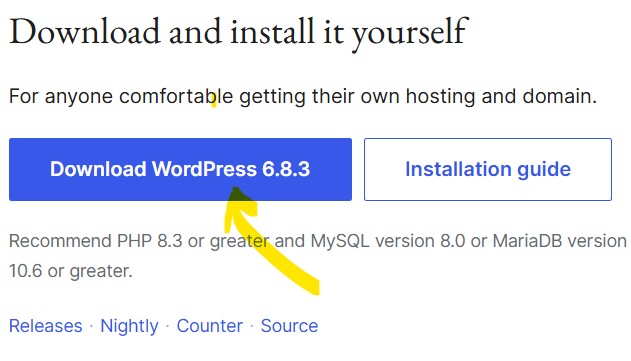
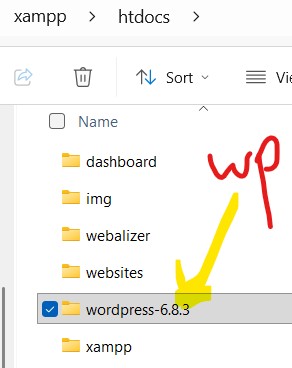
Copy the downloaded ZIP file to your c:\xampp\htdocs folder and extract by right clicking the file and select “Extract All…”.

Move the WordPress folder out of the extracted folder – Rename it to WP.
Creating the DataBase for WordPress
Open XAMPP and start the services for Apache and MySQL.
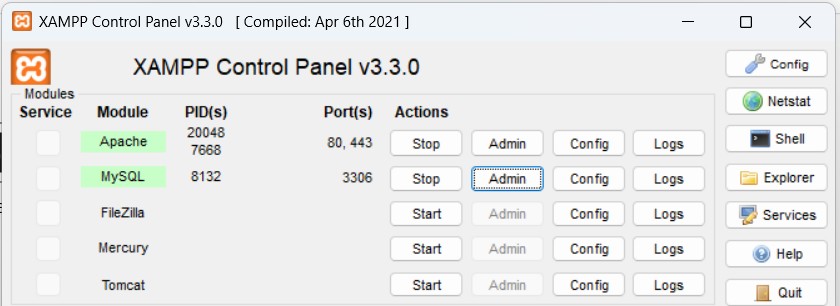
Click “Admin” for MySQL which will open the phpMyAdmin console.

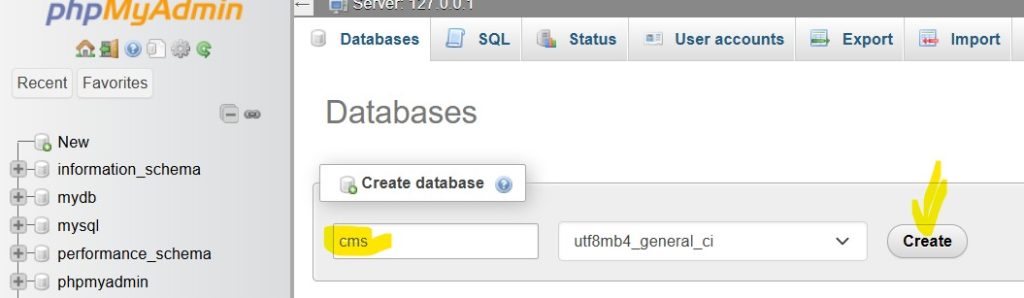
Create a new database called “cms”.
We now need to create a DB user with FULL privelidges to use the DB.

Create a new user account called webuser and give it full access.
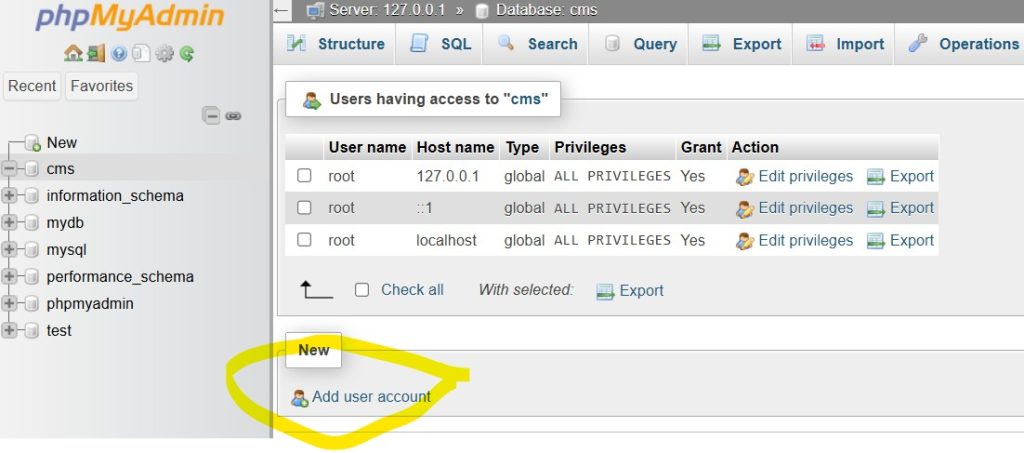
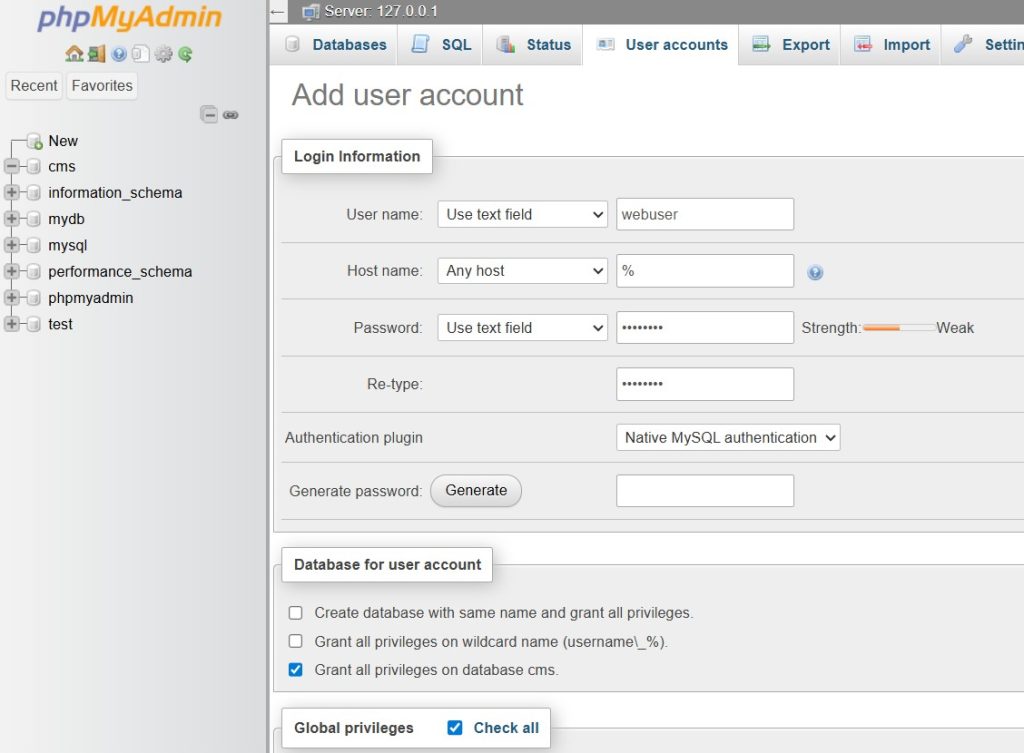
Click “Go” to create the “webuser” database user account.
Setup WordPress
Open a browser and go to http://localhost/wp
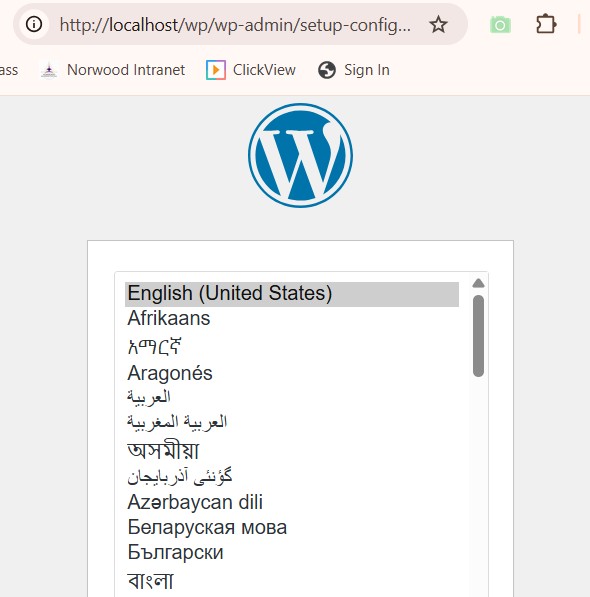
Select English and continue:

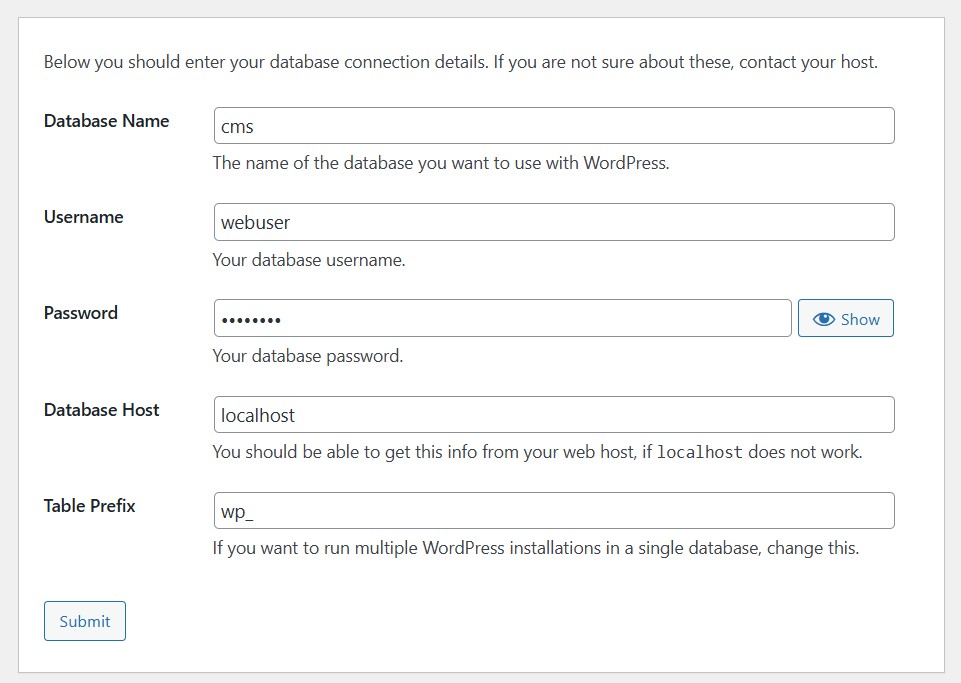
Upon submitting this page, you will be prompted to install WordPress and it will be able to connect to the DataBase.
The final step is to give your site a name, create an administrator user and password for WordPress and complete the setup.

Click “Install WordPress” to complete the installation.