
Back to: Spreadsheets – Excel
Learn to identify and format all types of data in Excel, then explore valuable tips on converting between data types to make your spreadsheet more functional.
When you work with data, it’s important to understand the different data types in Excel. This will help you input data correctly and perform the appropriate operations.
In this topic, we will explore data types such as Number, Text, Dates, and more—explaining how you can identify them and convert them to support your spreadsheet’s functionality.
Whether your work involves figures or operations, these data types will help you format your spreadsheet correctly and increase the efficiency of your data operations.
How to Identify Data Types in Excel
To determine the data type in Excel, right-click on any cell or a range of cells and choose Format Cells. The Number tab here will display the available data types, such as Number, Date, or Text.

Alternatively, you can go to the Number group from the Home tab and see the data types.

Different Data Types in Excel
Data types help you insert data into the document correctly. If there are incorrect data types within the dataset, the data can be misrepresented and cause calculation errors. So, knowing what data types are suitable for datasets is important.
Let’s take a look at some common data types in Excel:
Number data
Number data can be any value, including large numbers, small fractions, or qualitative data. In this section, we will take a look at examples including currency amounts, whole numbers, percentages, decimals, dates, times, and telephone numbers. As we will see, in order to ensure that Excel interprets your numeric data accurately, we have to define them using proper symbols and formats.
Keep in mind, there are subtle differences. For example, in a case where one cell has financial data and another has a date, Excel registers them both as Numeric, yet they are not identical.
Currency
You will be familiar with the Currency data type if you work with financial data. It formats monetary values and ensures that financial data is accurately represented by appropriate currency symbols and decimal places.
Here’s how you can apply the currency data type. Here we will convert numbers into currency.
- Select the range of cells you want to change.
- Right-click.
- Select the Format cell option, and a dialog box will appear.
- Go to the Number tab.
- Select the Currency data type and format your values.

All the selected columns have been converted to the currency data type. You can modify the currency symbol and decimal placement according to your preferences.
Date and Time
Date and Time data types store dates and times in different formats. These formats help with chronological data analysis, scheduling, and time-sensitive calculations.
Let’s take a look at the example of how to convert a Text into a Date. For time formatting, follow these steps and select the Time data type instead.
- First, select the cell you want to change.
- Right-click on the cell.
- Select the Format cells option.
- Go to the Number tab.
- Select the Date data type and format your values.
Depending on your goal, there might be additional steps:.
- If you want to write the current time, simply write
=NOW(). - To convert the date to
Text, all you have to do is apply=TEXT(Cell number, "MM/DD/YYYY").


Percentage
The Percentage data type converts numbers into percentages, making it easier to read and interpret ratio data and proportional values.
Here’s how you can convert numbers to percentages:
- Select the range of cells you want to change.
- Right-click on it.
- Select the Format cell option, and a dialog box will appear.
- Go to the Number tab.
- Select the Percentage data type and format your values.
- Adjust the decimal places.


Fractions
You can use the Fraction data type to display your value in fractions instead of decimals.
Let’s see how you can convert decimal numbers to fractions.
- Select the range of cells you want to change.
- Right-click on it.
- Select the Format cell option, and a dialog box will appear.
- Go to the Number tab.
- Select the Fraction data type and format your values.
- Adjust your fractional type.


Scientific
The Scientific data type displays a number in exponential notation, using E+n to represent that the number preceding E is multiplied by 10 to the nth power.
Let’s take a look at how to convert the number data type to the scientific data type:
- Select the range of cells you want to change.
- Right-click on it.
- Select the Format cell option, and a dialog box will appear.
- Go to the Number tab.
- Select the Scientific data type and format your values


Special
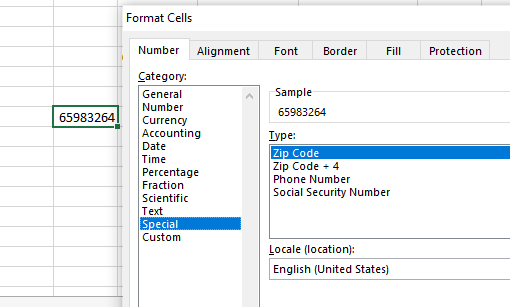
Excel’s Special data type includes formatting for zip codes, phone numbers, and Social Security numbers (SSNs). These formats keep the leading zeros in the case of zip codes and correctly format phone numbers and SSNs using the appropriate separators.
Let’s take a look at how to convert Values to Special data types:
- Select the cell you want to change.
- Right-click on it.
- Select the Format cell option, and a dialog box will appear.
- Go to the Number tab.
- Select the Special data type and format your values

Custom
As the name suggests, Custom data type allows you to customize the formatting according to your needs. It provides various formatting suggestions that can help you customize your values.
Let’s look at an example of how you can customize a date.
- Select the cell you want to change.
- Right-click on it.
- Select the Format cell option, and a dialog box will appear.
- Go to the Number tab.
- Select the Custom data type and format your values.
- For this example, we choose d-mmm-yy as our date format.

Text data
Text data is the basic type that allows you to input characters, including alphabetical, numerical, and special symbols.
Unlike number data, symbols inputted as Text do not support calculations. That’s why you can manually manage Text and Number data according to your needs.
However, by default, Excel interprets figures it does not understand as text data.
To convert Numbers to Text, here’s what you have to do:
- Highlight the cells or columns with text data you wish to change.
- Right-click on the selected cells.
- Click Format cells.
- Go to the Number tab.
- Select the
Textdata type.

