
Back to: Spreadsheets – Excel
Why Learn Excel?
Excel is a spreadsheet software used widely across many industries and professions. From business and finance to data analysis and project management, it is the main program used for organizing data, performing calculations, and creating reports.
Here are just a few ways people use Excel every day:
- Small business owners use it to track income and expenses.
- Teams use Excel to schedule tasks and track progress.
- Analysts use it to find patterns in data.
- Families use Excel to plan their spending.
- Teachers use Excel to track student scores.
As you can see, Excel is handy for anyone who deals with data. It can make your work easier and faster, no matter what field you’re in. And the best part is that Excel skills look great on a resume, so learning Excel can open a lot of doors.
Excel interface and basics
When you first open Excel, you may feel overwhelmed by all the buttons and options. But it’s simpler than it looks. The main area is your worksheet, made up of cells arranged in rows and columns. At the top, you’ll find what’s called the Ribbon, which has various tabs containing tools and commands.
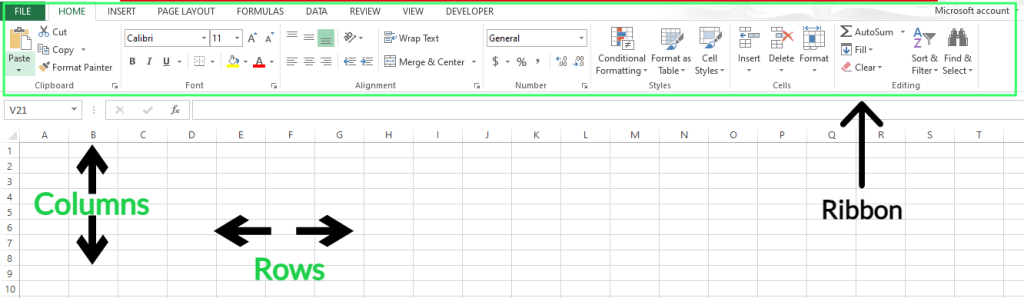
To get started, try clicking around different tabs and hovering over buttons to see what they do. Enter data in cells and experiment with different things — you can always undo your actions, so no need to worry.
Data entry and formatting
Once you know the basic interface of Excel, try to input some data. To do this, just click on a cell and start typing. Excel has many features that you can use to format and present this data. For example, I have some sample data that I’m formatting to make it look better.
Here, I select the cell and click the Bold button where I want to bold the text. I align the text to the middle. You can even use the currency option to format the Amount as currency. To make things a bit clearer, you can highlight important cells or ranges like I did here.

These formatting options organise information and make it easier to read and understand, and generally look nicer.
Basic formulas and functions
Excel provides a wide range of formulas to help you do math and other tasks with the information in your spreadsheet. Excel formulas always start with an equals sign, =. Here’s a basic formula example to find an average. Click into cell C2 and type:
=(A2+B2)/2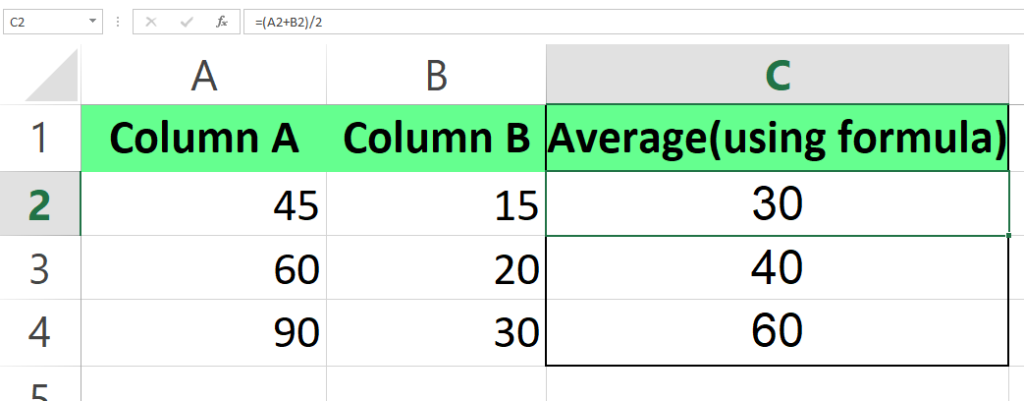
Formulas can do basic maths, but Excel also has built-in tools called functions for more complex tasks. Functions have names that tell you what they do, like SUM() or AVERAGE(). So, although you can calculate an average using a basic math formula, the relevant function can do the same thing:
=AVERAGE(A2,B2)We’ll talk more about functions later.
Replicate the spreadsheet below and apply formatting to change the background colour, add formula and format text as currency where required.

Cell Referencing
A cell reference in Excel identifies the location of a cell in the spreadsheet. There are two main types of cell references in Excel: absolute and relative.
Relative cell references change relative to the position where they are copied. For example, if you have a formula in cell B2 that references cell A2 (written as =A2), and you copy this formula down to cell B3, the formula in B3 will automatically adjust to reference A3.
Absolute cell references, on the other hand, remain constant no matter where they are copied. They are denoted by the $ symbol in front of the column letter and/or the row number, locking the reference to a specific cell. For instance, if you have a formula in cell B2 referencing cell A2 (=$A$2) and copy this formula to cell B3, the formula will still reference cell A2.
Mixed cell references combine both absolute and relative references. For example, in =A$2, the column reference is relative, and the row reference is absolute. If you copy this formula to the right (to C2), it will change to =B$2, but if you copy it down, it will stay as =A$2.