
Back to: Spreadsheets – Excel
Explore conditional formatting in Excel with simple to advanced examples and their best practices.
Spreadsheets can be boring, especially if you have rows and rows of data and no way of highlighting what’s important.
Conditional formatting is a quick and easy technique that solves this problem in just a few clicks.
In this topic, we explore conditional formatting in Excel, with examples and best practices for simple and advanced scenarios.
What is Conditional Formatting?
Conditional formatting in Excel is a feature that allows you to automatically apply formatting—like colors, icons, or data bars—to cells based on their values. This makes it easier to quickly identify trends, patterns, or outliers in your data.
You can highlight all the sales figures above a certain number, flag overdue tasks, or even color-code data trends.
If you’re analyzing monthly sales data, for example, you can instantly see which months are performing well against your targets.

The Basics of Conditional Formatting
First, select the cells you want to format. Then, go to the Home tab of the ribbon and click on “Conditional Formatting”.

A drop-down menu will appear, where you can choose from various rule types (or styles of conditional formatting), such as highlighting cells that contain specific text, values above or below a certain threshold, duplicate values, etc.
Once you’ve selected a rule type, you can then define the specific criteria for your rule. When you’re done, click OK, and the formatting will be applied to the cells that meet your criteria.
Conditional Formatting Styles in Excel
There are a range of conditional formatting styles that you can use to visually enhance your data in Excel.
We’ll be exploring each of the following styles in this section:
- Highlight cells rules
- Top/bottom rules
- Colour scales
- Data bars
- Icon sets
Highlight cells rules
The highlight cells style is highly versatile, allowing you to apply formatting to a variety of different data types.
You can emphasize specific cells based on criteria you set, such as values greater than a certain number, text that contains specific keywords, or dates within a particular range.

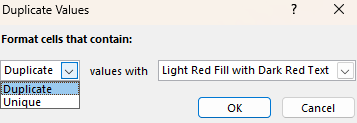
Another very useful option within this style is duplicate values. Selecting this style allows you to identify both duplicate and unique values.
This feature is essential for cleaning and investigating your data. For example, you could easily spot duplicate entries in a list of customer emails.
Top/bottom rules
This style automatically identifies the top or bottom values in a range of data. While 10 is the default value, you can adjust this to show any number of the top or bottom data points.
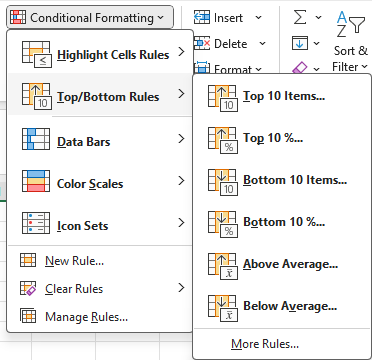
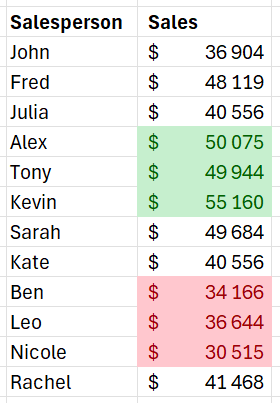
In the example below, we use the Top 10 and Bottom 10 styles to show just the top 3 and bottom 3 salespersons in our data.
Colour scales
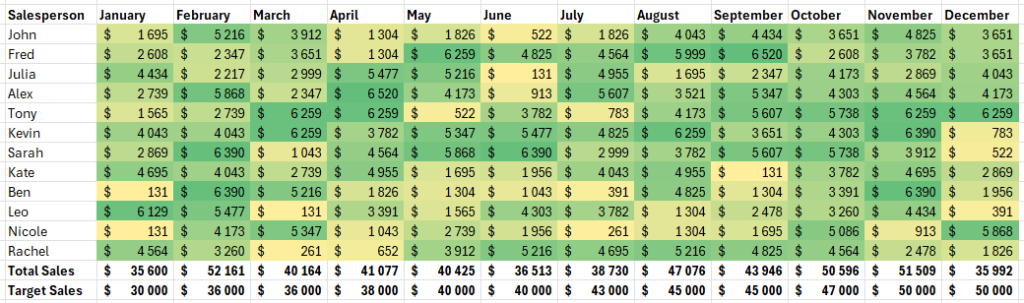
The colour scales style allows you to format a table of data as a heatmap. You can highlight the range of data points from lowest to highest using the colour gradient of your choice.

This style is very useful for quickly making sense of a table that contains a lot of numbers.
In the example below, we show each salesperson’s monthly sales. Without the color scales formatting applied, this would look like a confusing sea of numbers, and it would take more than a few minutes to figure out what’s important.
Instead, applying the color scale makes it much easier to identify the highest and lowest performing salesperson and month.
Data bars
This style adds horizontal bars within cells to visually represent the relative value of each cell, making it easy to compare data at a glance.
This style has quite a few options for changing how it looks and behaves. You can customize colors and choose whether to display the bar only or include the cell’s numerical value.


Icon sets
Lastly, there is the icon set style. These are similar to the data bars in that you have quite a few customization options, such as whether to display the icon only or both the icon and value.
You can even import your own icon sets to maintain consistent branding in your reports.

Formula-Driven Conditional Formatting
If your conditions are straightforward, like highlighting cells greater than a specific value or finding duplicates, predefined rules are quick and easy.
However, when your conditions depend on changing values or more complex logic, formulas provide a lot more flexibility. If you need to combine multiple conditions or custom rules, such as highlighting cells that are above average and also below a certain threshold, formulas can handle this complexity.
Simple example: highlight rows based on sales targets
Let’s say you have a list of regions in column B with their associated sales values in column C and a sales target in cell $C$7.
We want to highlight any sales figures above or below this target. To do this, we’ll need to apply two rules.
First, select the cells in column C to apply the rule.
In the conditional formatting drop-down menu, select “Greater than” and enter the cell that contains the target ($C$7). This formula checks if the value in each cell of column C is greater than the value in cell $C$7.

Choose the green color format to apply to cells that meet the condition. Then, repeat this process with the “Less than” formatting option in the conditional formatting drop-down menu and apply the red color format.
This will give us a nicely formatted table where we can quickly see which regions hit their target and which did not.

Whenever you change the sales target in cell $C$7, the conditional formatting will automatically update to reflect the new target. This makes your formatting dynamic and responsive to changes in your data without the need to adjust the rule manually each time.
Advanced example: highlight cells based on average sales
Suppose we have a table showing the total sales by salesperson, and we want to identify the top performers based on the average for the group.
Our data is structured as follows:
- Column B: Salesperson
- Column C: Sales value
First, select the first cell in the range to which you want to apply the formatting. In this example, it is C3.
Select “New Rule” from the conditional formatting dropdown menu. Then, select the rule type “Use a formula to determine which cells to format”.
Here, we must enter a formula that compares each cell to the average of the sales data.
The formula should be =C3>AVERAGE($C$3:$C$14).

Then, choose how you would like the cells that meet the criteria to be formatted, such as a fill color or font color. Click OK to apply the rule.
Lastly, copy the formatting from this first cell and paste it onto each subsequent cell in the range. This will automatically adjust the relative cell reference in our formula so that the correct cell is used for each calculation.
Below is the result. We can see that five out of the twelve salespeople performed above the average.

Conditional Formatting Best Practices
Start simple
When you’re new to conditional formatting, start with basic rules before experimenting with more complex formulas and conditions.
Begin by applying simple highlight rules, such as formatting cells that are greater than a specific value or highlighting duplicates. This approach helps you understand the impact of conditional formatting on your data.
As you gain confidence, you can gradually introduce more advanced techniques to enhance your data analysis.
Use consistent colours
Using consistent colours across your conditional formatting rules keeps your spreadsheets clear and consistent.
For example, use green to indicate positive performance, red for negative, and yellow for warnings or alerts.
This consistency in colour schemes makes it easier for you and others to interpret the data quickly, reducing confusion and ambiguity later on.
Avoid overuse
While conditional formatting is a powerful tool, overusing it can make your data harder to read and understand. Applying too many rules or overly complex formatting can make your spreadsheet look cluttered, which will only lead to confusion.
Focus on highlighting the most critical data points that need attention and try not to apply multiple conflicting rules to the same range of cells.