Back to: Spreadsheets – Excel
Testing whether conditions are true or false and making logical comparisons between expressions are common to many tasks. You can use the AND, OR, NOT, and IF functions to create conditional formulas.
For example, the IF function uses the following arguments.
=IF(logical_test,value_if_true,value_if_false)Formula that uses the IF function
- logical_test: The condition that you want to check.
- value_if_true: The value to return if the condition is True.
- value_if_false: The value to return if the condition is False.
Boolean data
Excel’s Boolean data type represents logical values that perform logical operations. It only has two possible values: TRUE and FALSE. These values are used in functions and formulas to test conditions and return logical results.
Take a look at how we test whether the two given values are equal or not using the Boolean data type: =value1=value2.
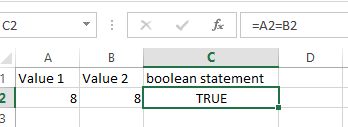
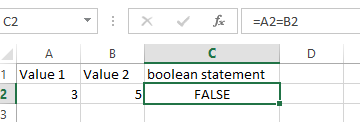
In the rest of this section, we will take a closer look at how Boolean data types are used in logical function. You can also find some logical functions by heading over to Formulas > Logical.

Logical functions help users perform complex decision-making processes within their spreadsheets. Logical functions such as IF(), AND(), OR(), and NOT() allow users to test conditions and return specific values based on whether the conditions are met.
IF() function
IF() determines if the value in one cell is greater than the other. If the condition is true, it returns TRUE. Otherwise, it returns FALSE.

AND() function
AND() tests conditions to see if all the conditions are true.

OR() function
OR() tests values or logical statements—checks if any values meet the arguments.

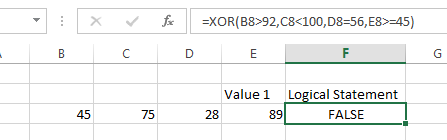
XOR() function
XOR() tests if exactly one argument is true or false.
NOT() function
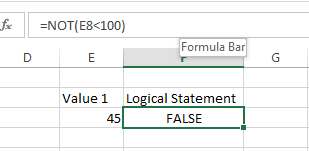
NOT() reverses the argument’s value. If the argument is valid, then the NOT() function will return FALSE. Conversely, if the argument is false, then the NOT() function will return TRUE. This function can also be used to find duplicates in Excel.
Verifying Data Types in Excel
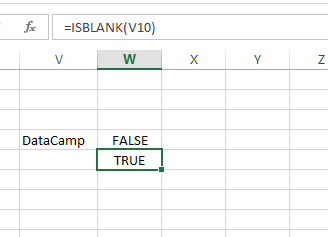
In this section, we will review two examples of how to verify data types in Excel. In the first example, we can check if a cell is empty by applying the ISBLANK() function.
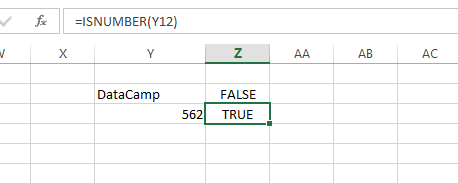
Next, we check if a cell contains data using the ISNUMBER() function.