
Back to: Spreadsheets – Excel
Learn about Excel’s various data visualisation options that can help you analyse and interpret your data.
Many users don’t fully harness the full power of Excel. In this topic, we’ll cover the different visualisation options available in Excel to help you analyse and interpret your data.
Defining Data Visualisation
We’ll first start by defining what data visualisation is. Data visualisation is a graphical representation of data. By utilizing charts, graphs, maps, etc., we can provide a simple and accessible way to understand our data and identify trends and outliers within our datasets. Note that Excel uses the term “chart” to mean a “plot“. For example, a bar plot is called a bar chart in Excel terminology.
Example Dataset
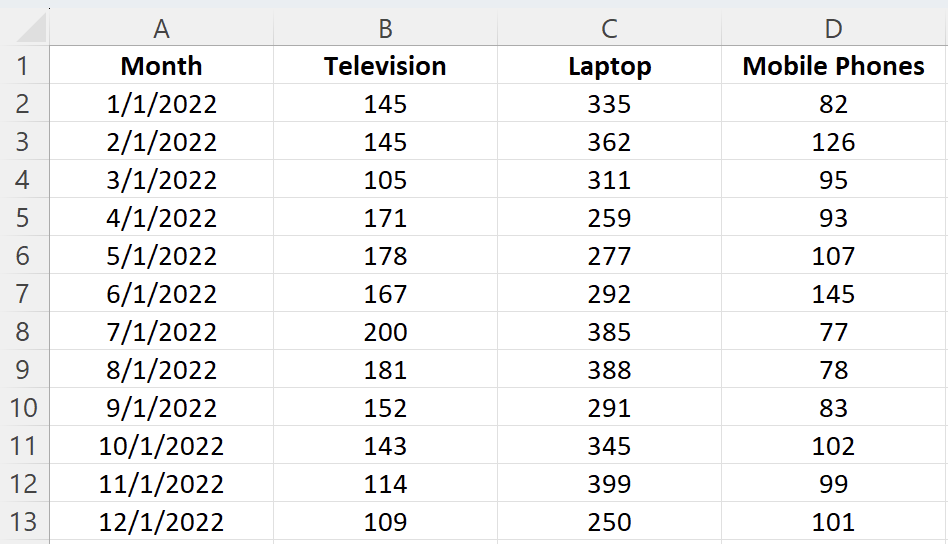
We first need a dataset to work with before creating any visualizations. This tutorial will use a simple dataset containing sales data for a local electronics store. The dataset contains information on the number of units sold for various product types in 2022 and totals for columns and rows.
| Month | TVs | Mobile Phones | Laptops | Total |
| 1/1/2022 | 145 | 335 | 82 | 562 |
| 2/1/2022 | 145 | 362 | 126 | 633 |
| 3/1/2022 | 105 | 311 | 95 | 511 |
| 4/1/2022 | 171 | 259 | 93 | 523 |
| 5/1/2022 | 178 | 277 | 107 | 562 |
| 6/1/2022 | 167 | 292 | 145 | 604 |
| 7/1/2022 | 200 | 385 | 77 | 662 |
| 8/1/2022 | 181 | 388 | 78 | 647 |
| 9/1/2022 | 152 | 291 | 83 | 526 |
| 10/1/2022 | 143 | 345 | 102 | 590 |
| 11/1/2022 | 114 | 399 | 99 | 612 |
| 12/1/2022 | 109 | 250 | 101 | 460 |
| Total | 1810 | 3894 | 1188 |
We’ll be working with this dataset throughout this tutorial. You can download the data file from GitHub.
Alternatively, you can import the dataset using the following steps:
- Open Excel and create a new workbook.
- Copy the dataset above and paste it into cell A1
Format the cells as needed (e.g., adjust column width, apply bold formatting to headers, etc.).
Creating Basic Charts in Excel
Excel has multiple options for choosing a particular chart type. For example, if you want to create a column or bar chart, you are often presented with various visualisation options. For example, there are 2D and 3D versions and normal, stacked, and 100% stacked options. Depending on your requirements, you can choose the visualisation type that best suits your needs.

Excel bar charts
Bar charts are one of the easiest charts to interpret, enabling the person viewing the chart an easy way to compare categorical data quickly. On a bar chart, the categorical data is on the y-axis, and the values are on the x-axis.
To create a bar chart:
- Select the data range A1:D13
- Click the “Insert” tab in the Excel ribbon
- Click on the columns icon button dropdown, and under the “2-D Bar” category, choose “Clustered Bar”

Excel column charts
A column chart, also known as a vertical bar chart, helps visualize data where categories are placed on the x-axis and the values on the y-axis. Similar to bar charts, they help visualise data across categories.
To create a column chart in Excel:
- Select the data range A1:D13
- Click the “Insert” tab in the Excel ribbon
- Click on the columns icon dropdown, and under the “2-D Column” category, choose “Clustered Column”
You can now see a column chart that displays the number of units sold for each product category by the month.

Excel line charts
A line chart is the most useful way to capture how a numerical variable changes over time. This is helpful to identify trends in numeric values.
To create a line chart in Excel:
- Select the data range A1:D13
- Click the “Insert” tab in the Excel ribbon
- Click on the line chart dropdown, and under the “2-D Line” category, choose “Line with Markers”
You can now see a line chart displaying units sold each month split by product category. This enables you to compare each product category’s performance over time easily.

Excel pie charts
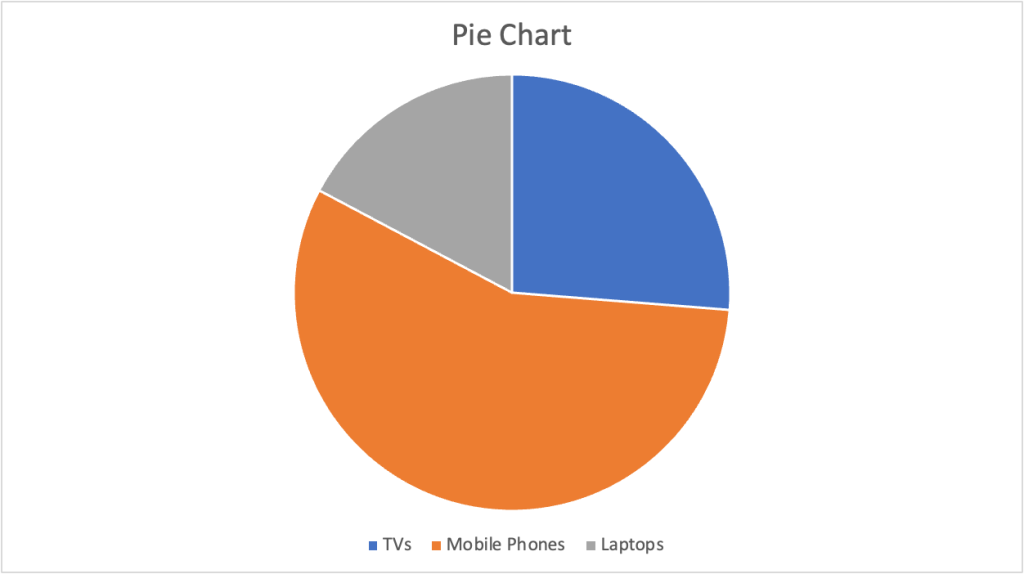
A pie chart is most commonly used to show the proportions of a whole. It’s like visualizing fractions when you were in high school. With this pie chart, we want to compare the total sales between the three categories.
To create a pie chart in Excel:
- First, select the data range B1:D1
- Second, using the command (for Mac) or ctrl (for Windows), select the second date range: B14:D14
- Click the “Insert” tab in the Excel ribbon
- Click on the pie chart dropdown, and under the “2-D Pie” category, choose “Pie”
Excel scatter plots
A scatter plot is commonly used to visualize the relationship between two variables. It can be useful for quickly surfacing potential correlations between data points. We’ll create a scatter plot to compare the number of TVs and laptops sold.
To create a scatter plot in Excel:
- Select the data range A1:C13
- Click the “Insert” tab in the Excel ribbon
- Click on the scatter plot dropdown, and under the “Scatter” category, choose “Histogram”
- Click “Scatter or Bubble Chart” and choose “Scatter with Smooth Lines and Markers”

Excel waterfall chart
A waterfall chart is a special chart that helps illustrate how positive and negative values can contribute to a total. They can be great for visualizing changes over time. In our example, we’ll compare the total sales for each month regardless of the categories.
To create a waterfall chart in Excel:
- First, select the data range A2:A13
- Second, using the command (for Mac) or ctrl (for Windows), select the second data range E2:E13
- Click on the waterfall chart dropdown, and under the “Waterfall” category, choose “Waterfall”
We’ll only see positive values in our example because the Total column only contains positive values, but this chart can be great for comparing financial data and changes over time.

Customizing and Formatting Excel Charts
Aside from creating charts in Excel, there are many options to customise and format a chart. From here, we’ll discuss some common formatting options that’ll help you enhance your visuals.
First, create a column chart based on our previous guidance that displays the number of units sold for each product category by the month.
Chart elements
Chart elements include titles, legends, data labels, gridlines, and axes. You can add, remove, or modify these elements as needed.
Click on the chart to select it.
- In the Excel ribbon, click the “Chart Design” tab
- Click the “Add Chart Element” dropdown to access the available chart elements

Chart title
- To add a chart title, click “Add Chart Element” > “Chart Title” and choose one of the available options (e.g., “Above Chart” or “Centered Overlay”). You can then click the title placeholder and type your desired title
- To remove a chart title, right-click on the title and select “Delete”
For this exercise, rename the chart “Electronic Store Sales 2025”
Legend
- To modify the chart legend, click “Add Chart Element” > “Legend” and choose a position for the legend (e.g., “Right” or “Top”)
- To remove the legend, click “Add Chart Element” > “Legend” > “None”
For this exercise, move the legend to the top of the chart.
Data labels
- To add data labels, click “Add Chart Element” > “Data Labels” and choose one of the available options (e.g., “Center” or “Above”). This will display the data values directly on the chart
- To remove data labels, click “Add Chart Element” > “Data Labels” > “None”
- To remove data labels from individual categories, right-click on the data label of the chosen category; this will highlight all relevant data labels. You can then click “Delete”
For this tutorial, add data labels for all categories.
Your chart should now look like this:

Chart Styles and colours
On top of customizing individual chart elements, you can change your chart’s overall look and feel by applying different styles and colour schemes.
To customise a chart style, select the visual you want to update. Then take the following steps:
- In the Excel ribbon, click the “Chart Design” tab
- Under the “Chart Styles” section, there is an option to change styles and change colours
- For chart styles: Browse the available styles and click one to apply to your chart
- For color changes: Click the “Change Colours” dropdown and choose a colour scheme

By implementing small visual changes, we can see a big difference in the aesthetic of the whole chart. Here’s an example of how our chart has changed by choosing Style 6 and Monochromatic Palette 8.

Formatting Excel chart axes
To improve the readability of our chart, we can format our axis in several ways, including axis titles, scale, or even visibility.
Axis titles
- To add an axis title, click “Add Chart Element” > “Axis Titles” and choose “Primary Horizontal” or “Primary Vertical.” You can then click the title placeholder and type your desired title
- To remove an axis title, right-click on the axis title and click “Delete”
For this tutorial, add an x-axis title “Month” and a y-axis title “Products Sold.”
Axis scale and number format
To adjust the axis scale or number format:
- Right-click the axis you want to modify and choose “Format Axis”
In the “Format Axis” pane, you can change the minimum and maximum values, major and minor units, or number format.

For this tutorial, we intend to keep these options the same but feel free to play around and test what each does.
Axis visibility
Finally, if you would like to remove the axis labels from showing, you can take the following steps:
- In the Excel ribbon, click the “Chart Design” tab
- Click the “Add Chart Element” dropdown and navigate to “Axes”
- By default, both options will have a darker gray box surrounding them, to remove an Axes, simply de-select the axes you’d like to remove

Finally
We have covered some of Excel’s most common visualization techniques, including basic charts such as columns and bars and adding advanced charts such as histograms and scatter plots. Additionally, we’ve covered how to level up your visualizations by applying customization and formatting. Following these steps, you can create compelling visualizations to analyze and understand your data better.
If you’d like to see what our final visualization could look like, take a peek below:

As with anything, practice makes perfect. Experiment with all the available options in Excel.